Button for your site

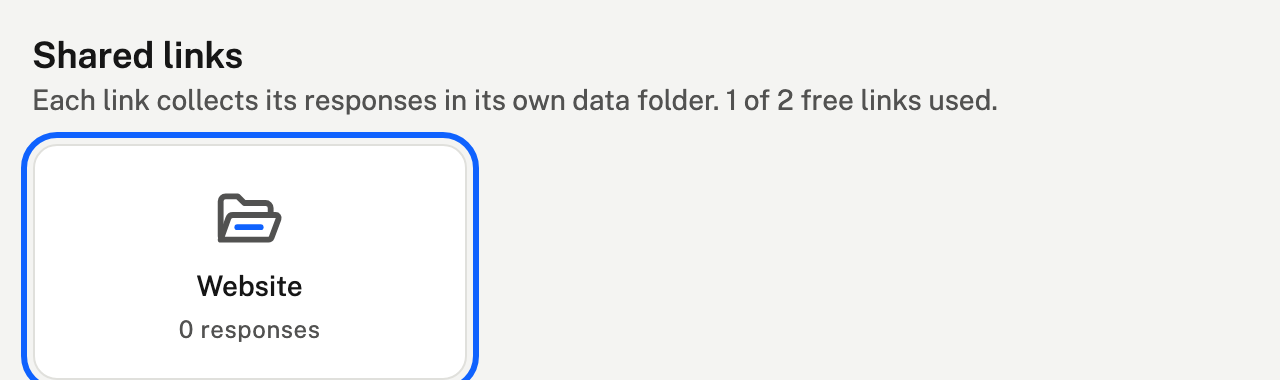
1. Open the link the button will use
Open your form and, under Shared links, choose the link for your site.
2. Choose a style and copy the HTML
On the link's page, open Put it on your site (under the share link), choose a style and copy the HTML.
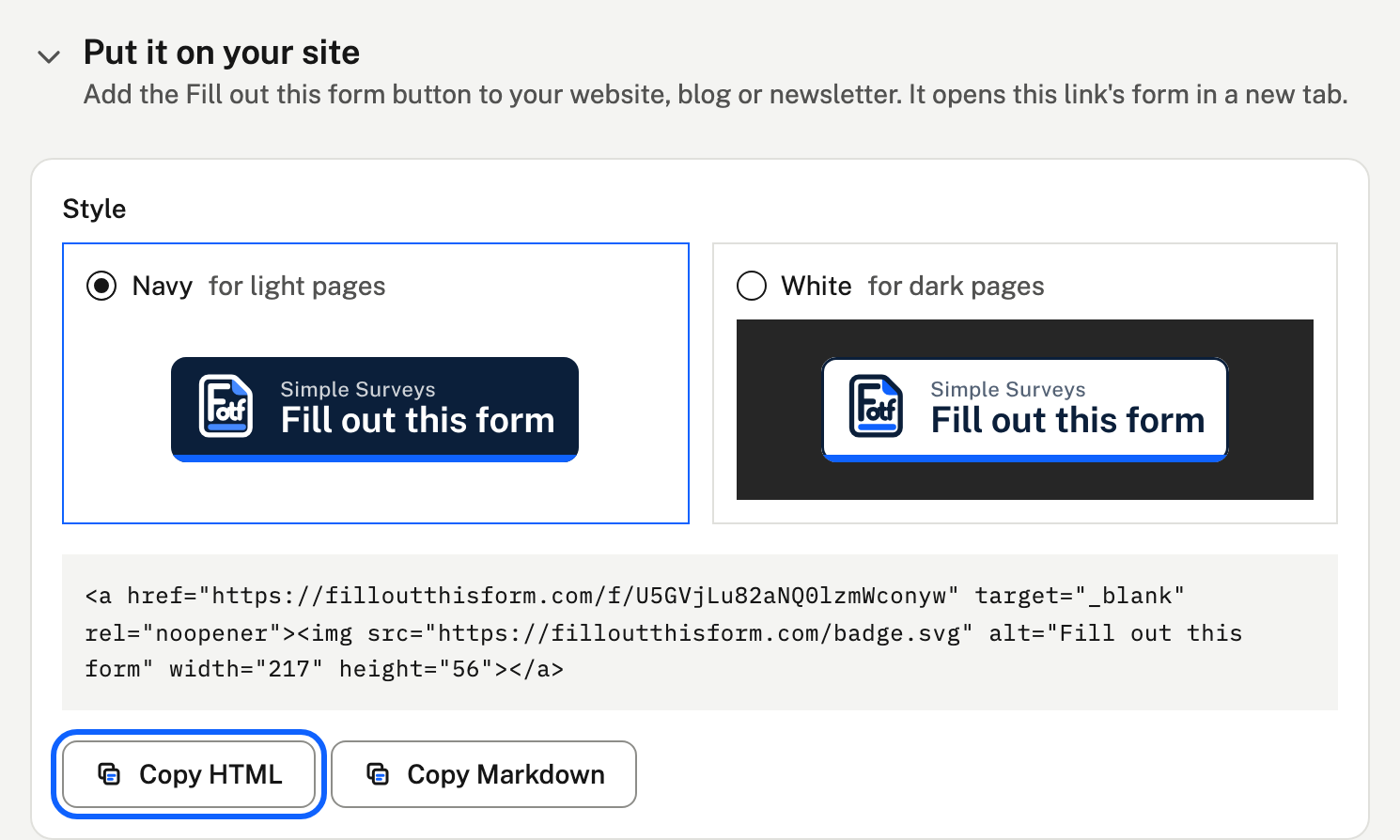
Where your site takes Markdown rather than HTML, such as a README on GitHub, choose Copy Markdown instead.
3. Paste it into your site
Add an HTML or code block where you want the button, and paste. In the usual tools:
- WordPress: add a Custom HTML block.
- Squarespace: add a Code block.
- Wix: add Embed Code, then Embed HTML.
- Webflow: add a Code Embed element.
- Email newsletters: most have an HTML or code block. If yours doesn't, add the button as a picture and link it to your shared link.
- Your own HTML: paste it anywhere in the page's body.
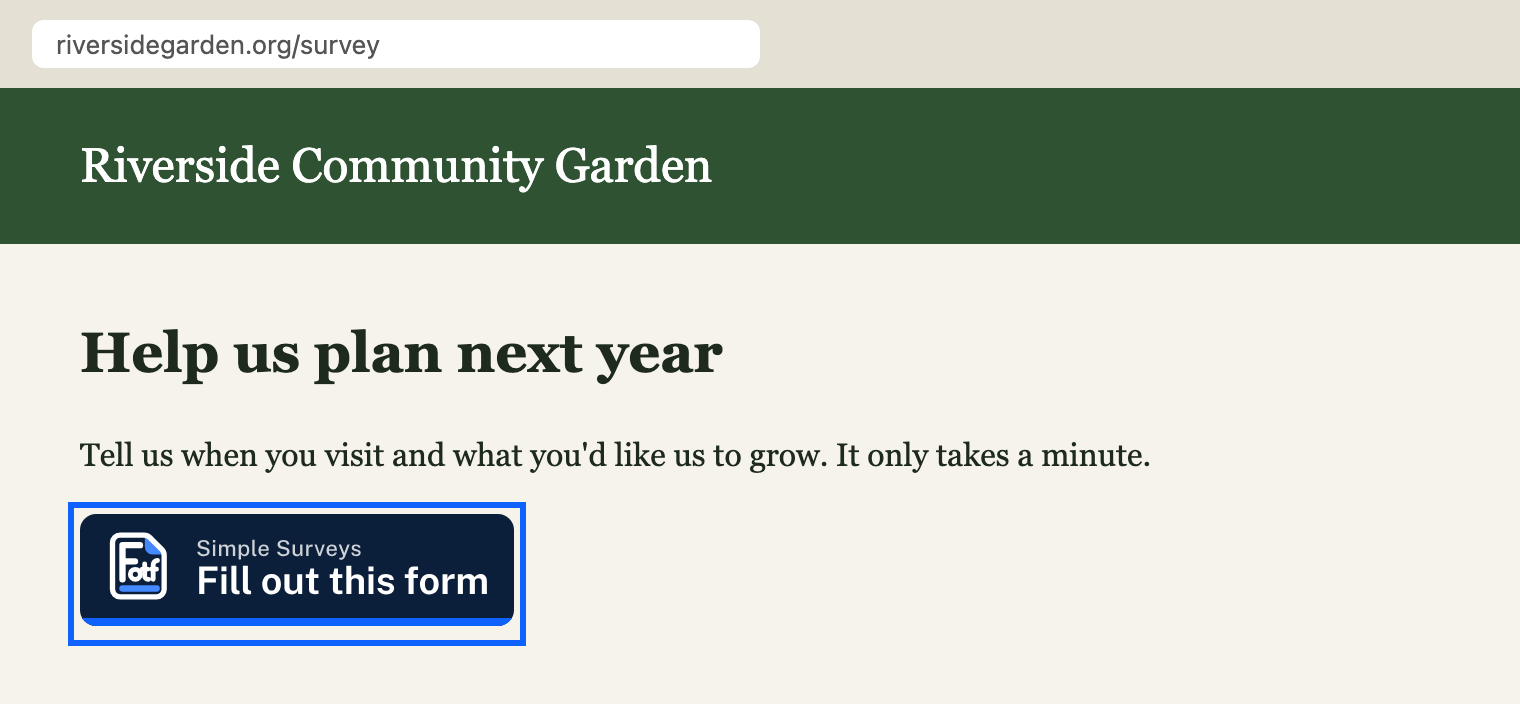
4. Check it on your page
Publish or preview the page. The button sits wherever you pasted it.
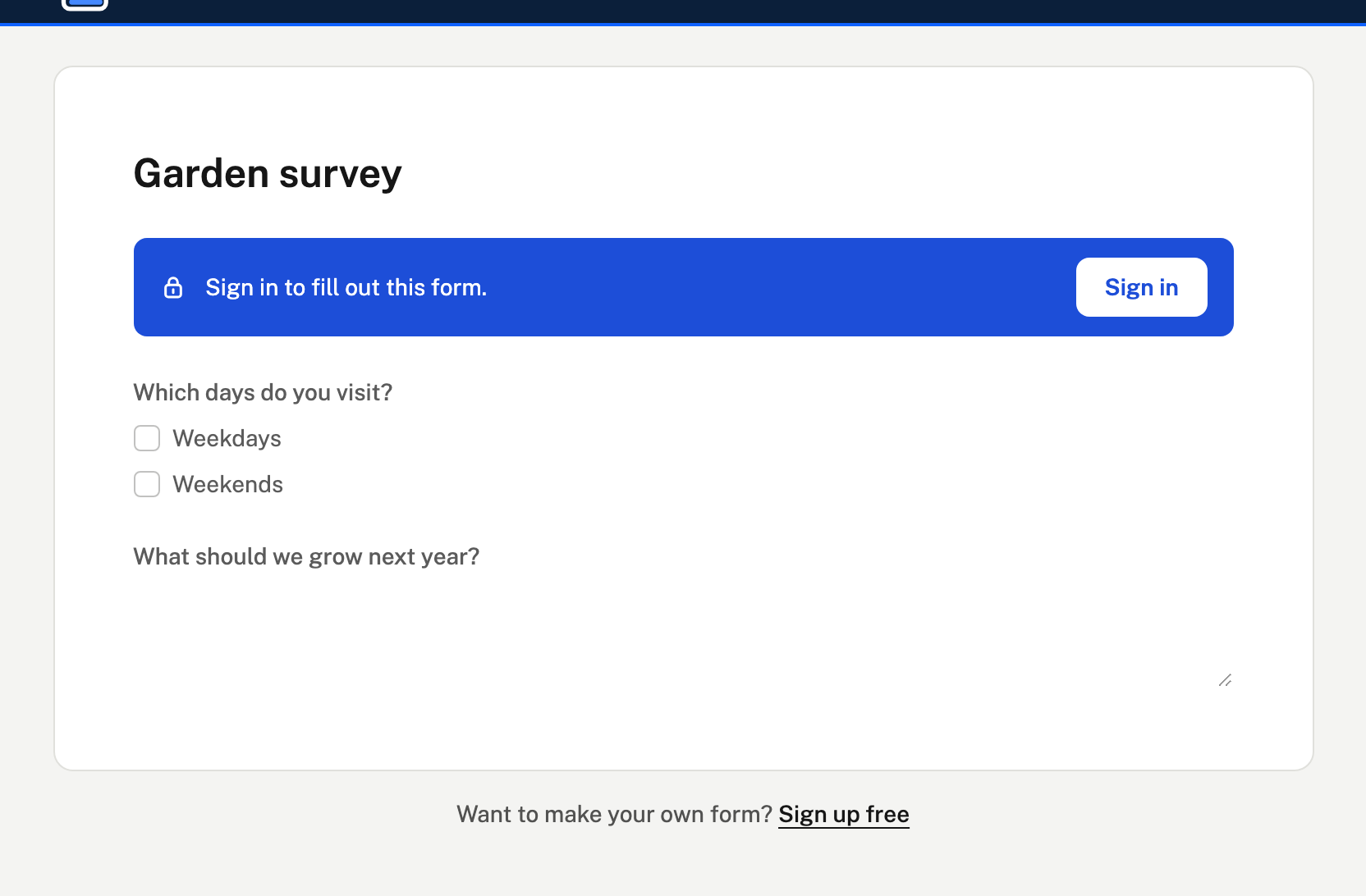
5. Try it
Click the button. Your form opens in a new tab, on its own page, and your site stays open behind it. People sign in with their email to send a response, as with any shared link.
Changing its size
The HTML is a link around a picture of the button:
<a href="https://filloutthisform.com/f/…" target="_blank" rel="noopener">
  <img src="https://filloutthisform.com/badge.svg" alt="Fill out this form" width="217" height="56">
</a>
To make it smaller, change width and height together, keeping their proportions (for example 163 and 42). It stays sharp at any size.
How it works
- It's a plain link and picture: no script, no cookies, and nothing is tracked on your page.
- The form isn't shown inside your page. It opens on its own, so signing in and passwords work as usual.
- If you turn the link off or archive it, the button stays on your site, and people who click it see your message instead. See Sharing & QR codes.