Passkeys
What a passkey is
A passkey is a passwordless login credential that uses public-key cryptography to let you sign in to websites.
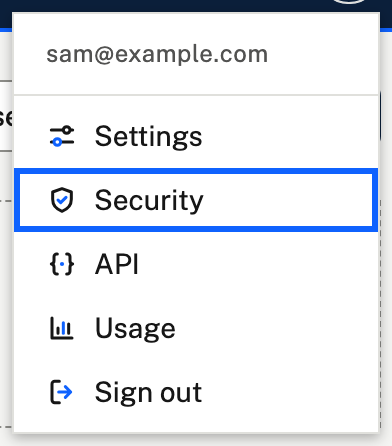
1. Open Security
Sign in as usual, then choose your initials at the top right, and Security.
2. Choose Add a passkey
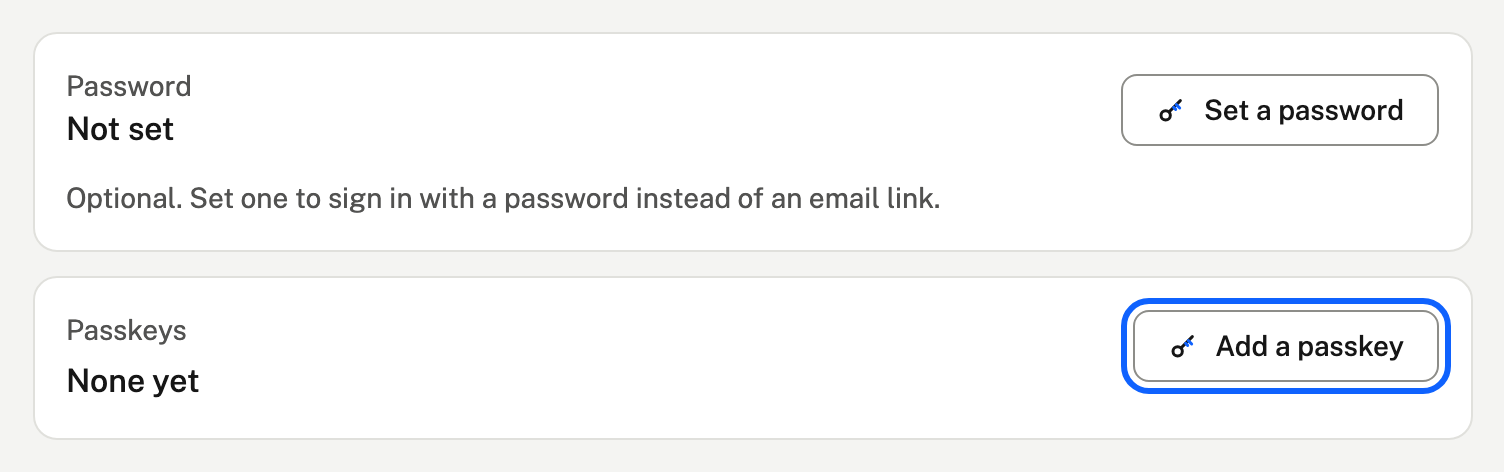
Your browser takes over and asks how to save it: Face ID or a fingerprint, your device's PIN, or your password manager. Follow its steps. To use the passkey on your phone too, save it to a password manager that syncs, or add another passkey from the phone.
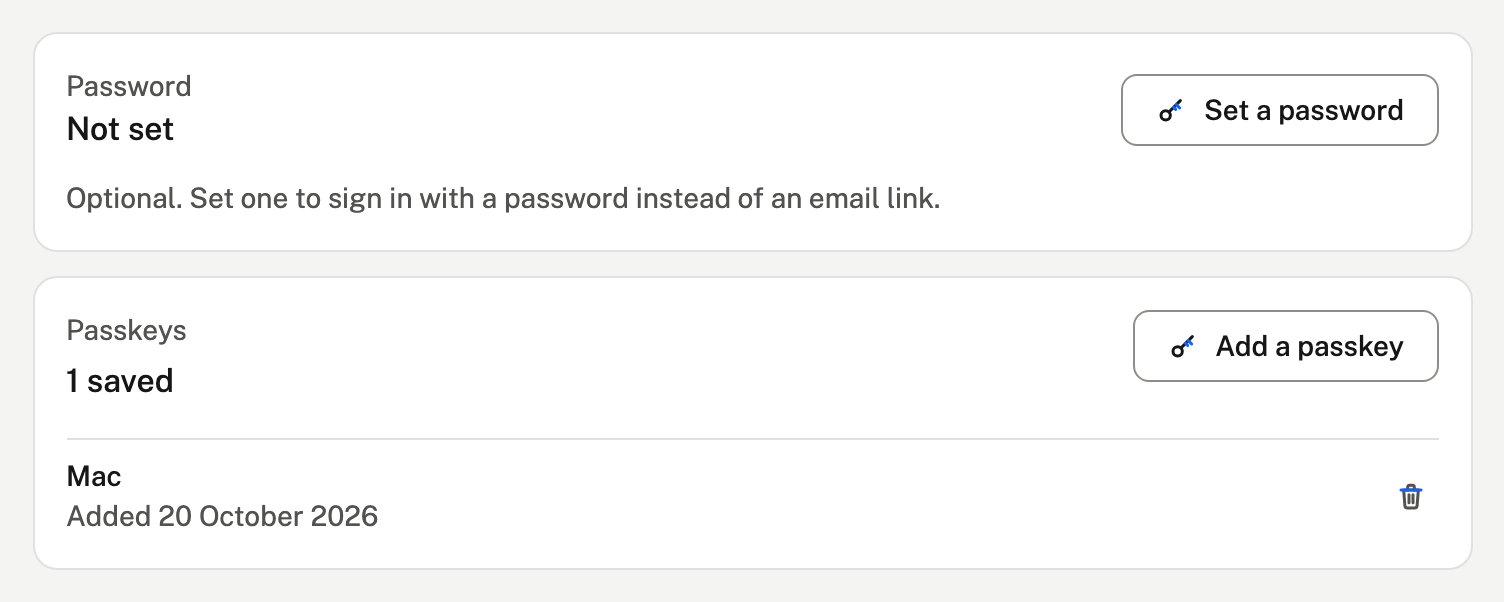
3. It's saved
The passkey appears under Passkeys, named after the device that saved it. We also email you to say a passkey was added, so you'd know if it wasn't you.
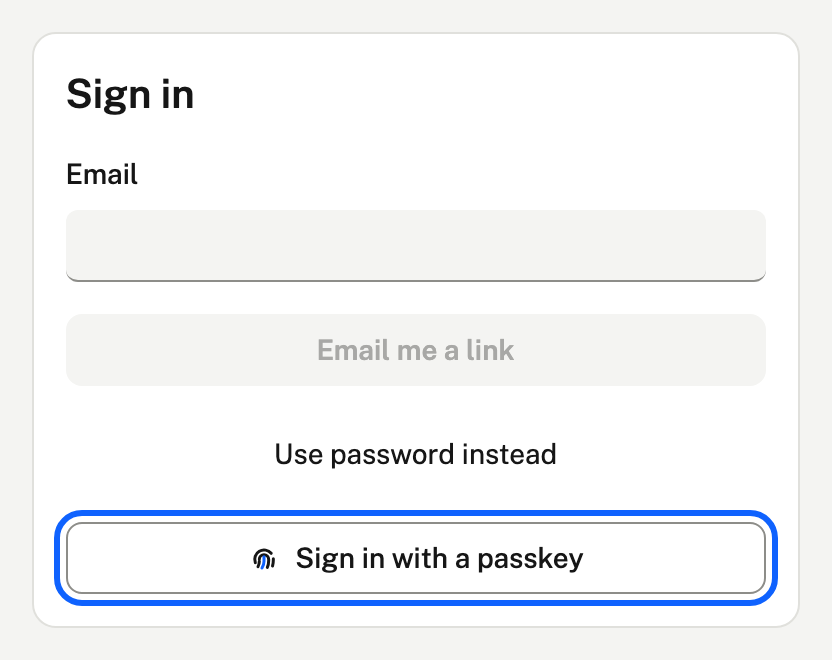
Signing in with it
On the sign-in page, choose Sign in with a passkey and confirm with your face, fingerprint or PIN. Some browsers also offer your passkey as soon as you tap the Email field.
Removing one
- In Security, choose the bin beside a passkey to remove it. It stops working at once.
- Remove a passkey here if you lose the device it's on. You can still sign in with an email link.