Projects
A Pro feature. Upgrading a single form doesn't include it. See Plans & pricing.
What a project is
- Everyone has a Default project.
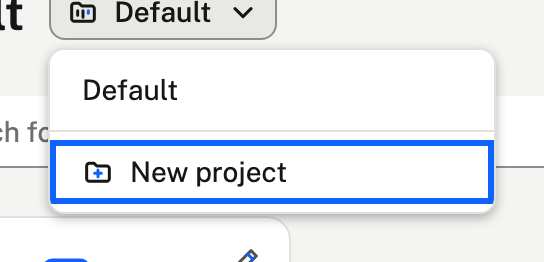
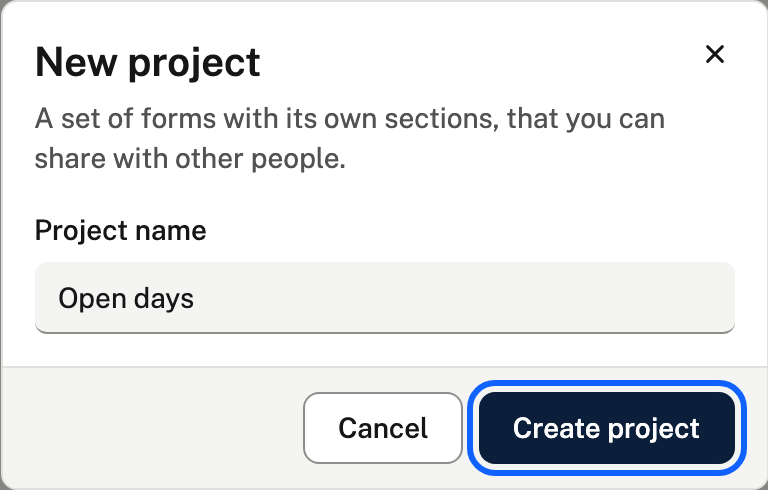
- With Pro, choose New project from the project menu next to the page title. You can have 10 projects, Default included.
- Each project has its own forms and sections, and works just like Default.
Inviting people
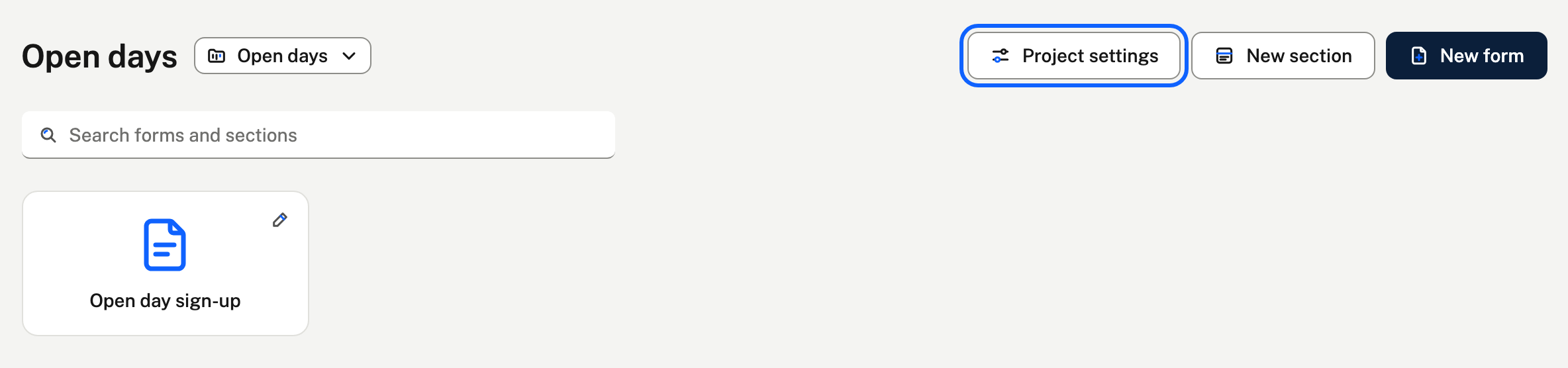
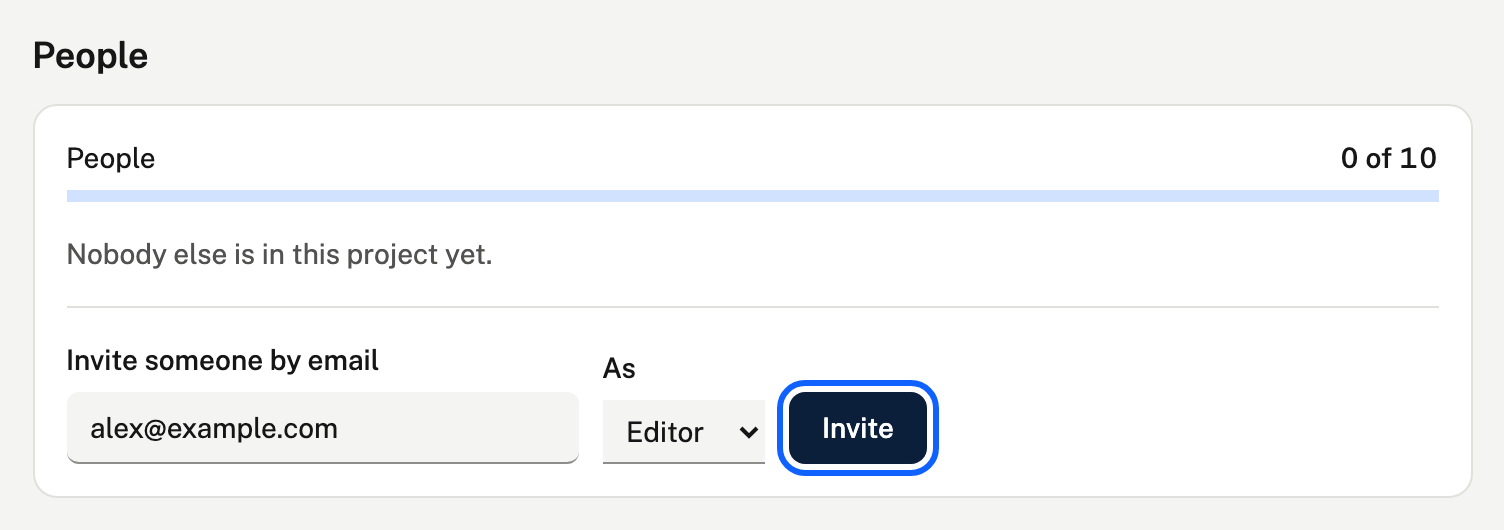
- In the project, choose Project settings (next to New form), and invite someone by the email they sign in with, as an editor or a viewer. Up to 10 people per project, invitations included.
- They don't need Pro, or even an account yet. They get an email, and sign in with that address to answer on their Invitations page. If they're new, signing in creates their account. Nothing changes until they accept. Then the project shows in their project menu.
- You get an alert when they accept or decline. Until they answer, they're listed as Invited, and you can cancel the invitation.
- You can change what they can do, or remove them, at any time. They can leave from the same page.
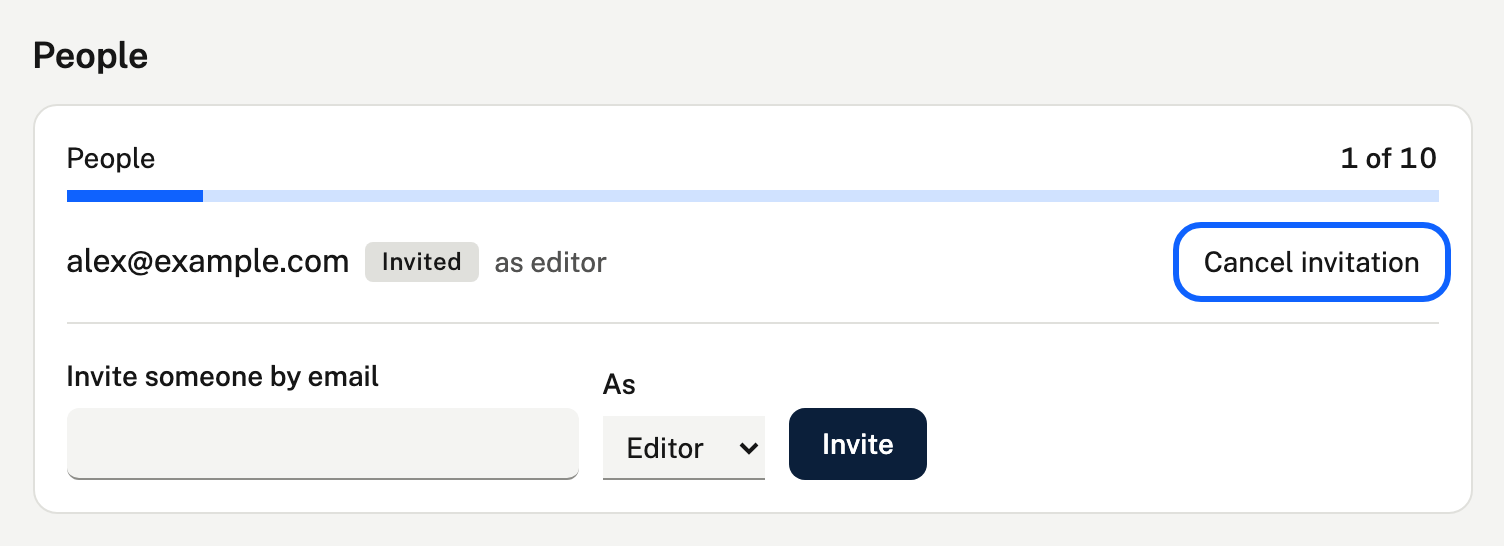
This is what they see on their Invitations page:

Editors and viewers
- Editors build and change the project's forms, arrange its sections, and create and manage shared links and their restrictions.
- Viewers can see the forms and their shared links, and change nothing.
- Editors and viewers who have Pro themselves see the project's responses in the Responses dashboard. Only you, the owner, see them on a link's page and through the API, delete forms or links, upgrade a form, or manage the project and its people.
Moving forms
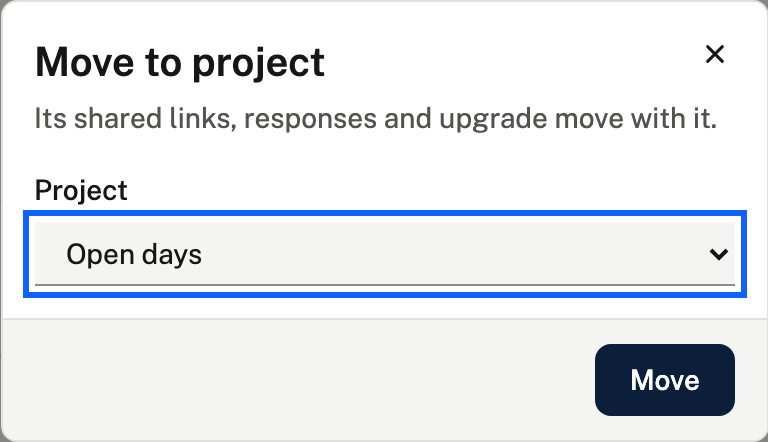
On a form's page, choose Move (beside Colours and Save template) and pick a project. Its links, responses and upgrade go with it.
Seeing who did what
Choose Activity in your account menu to see what has been done on your account, newest first, and by whom: including the people in your projects. It records your sign-ins, creating and revoking API keys, adding and deleting webhooks, setting or removing a password, adding or removing a passkey, deleting forms, sharing and deleting links, archiving links, deleting responses, downloading responses, and inviting, changing and removing people in a project.
- It never shows what is in a response, only that responses were downloaded or deleted.
- Changes made through the API show as "Through the API".
- Sign-ins are listed too. Choose Hide sign-ins to leave them out.
- It's kept for a year, and only you, the account's owner, can see it.
If Pro ends
Your projects fold back into Default: every form moves there, each project's forms under a section with the project's name, and the people you added lose access. Nothing is deleted. Deleting a project does the same for that one project.