Your branding
Pro
A Pro feature. Upgrading a single form doesn't include it. See Plans & pricing.
Setting it up
- Open Settings, and find Branding.
- Add your name, and a website if you like. Your name and logo link there, in a new tab.
- Pick a header colour. The text on it turns dark or light so it stays readable. Then choose Save.
- Upload a logo: PNG, JPG, WebP or GIF, up to 5 MB. It shows 32px tall.
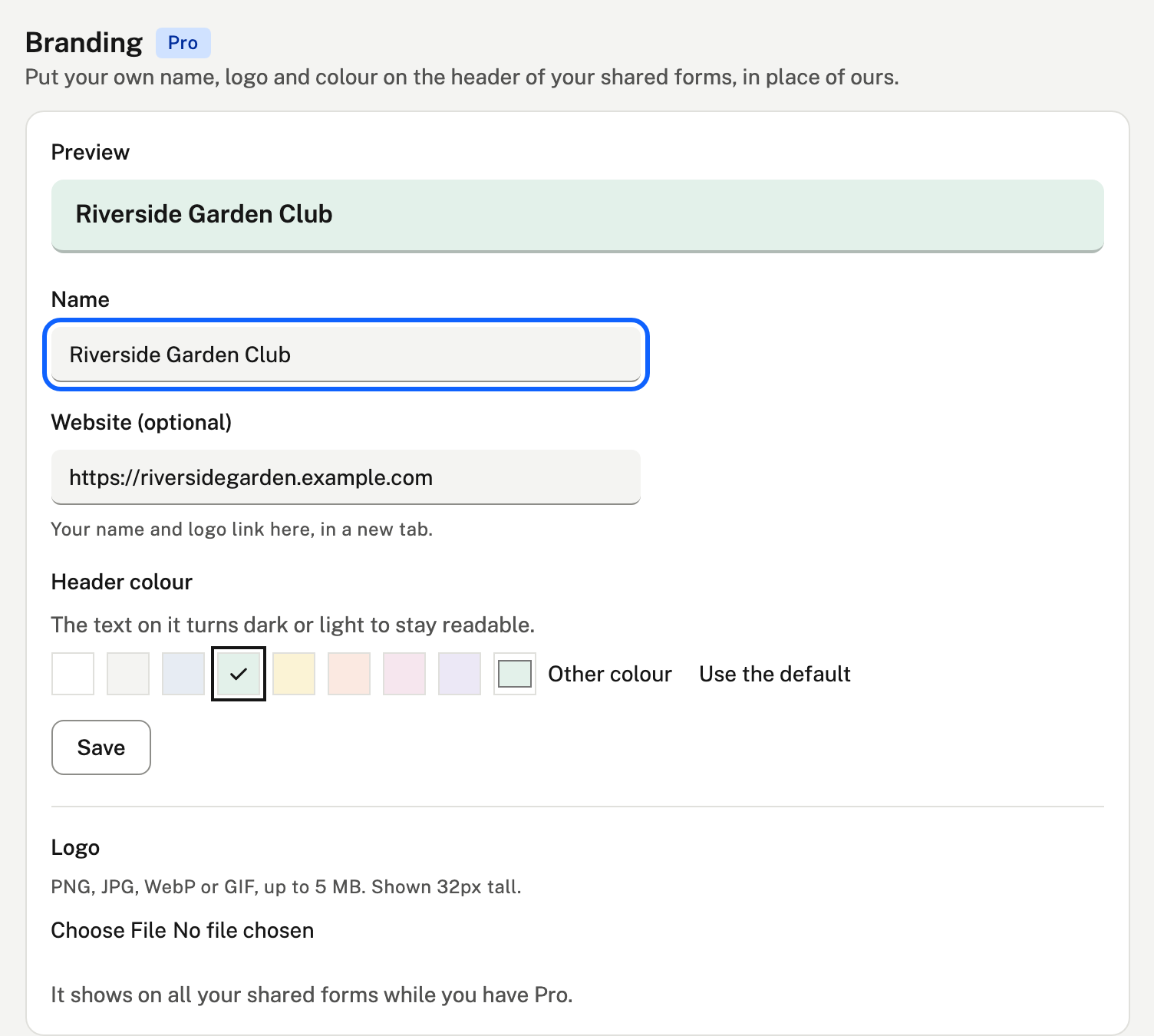
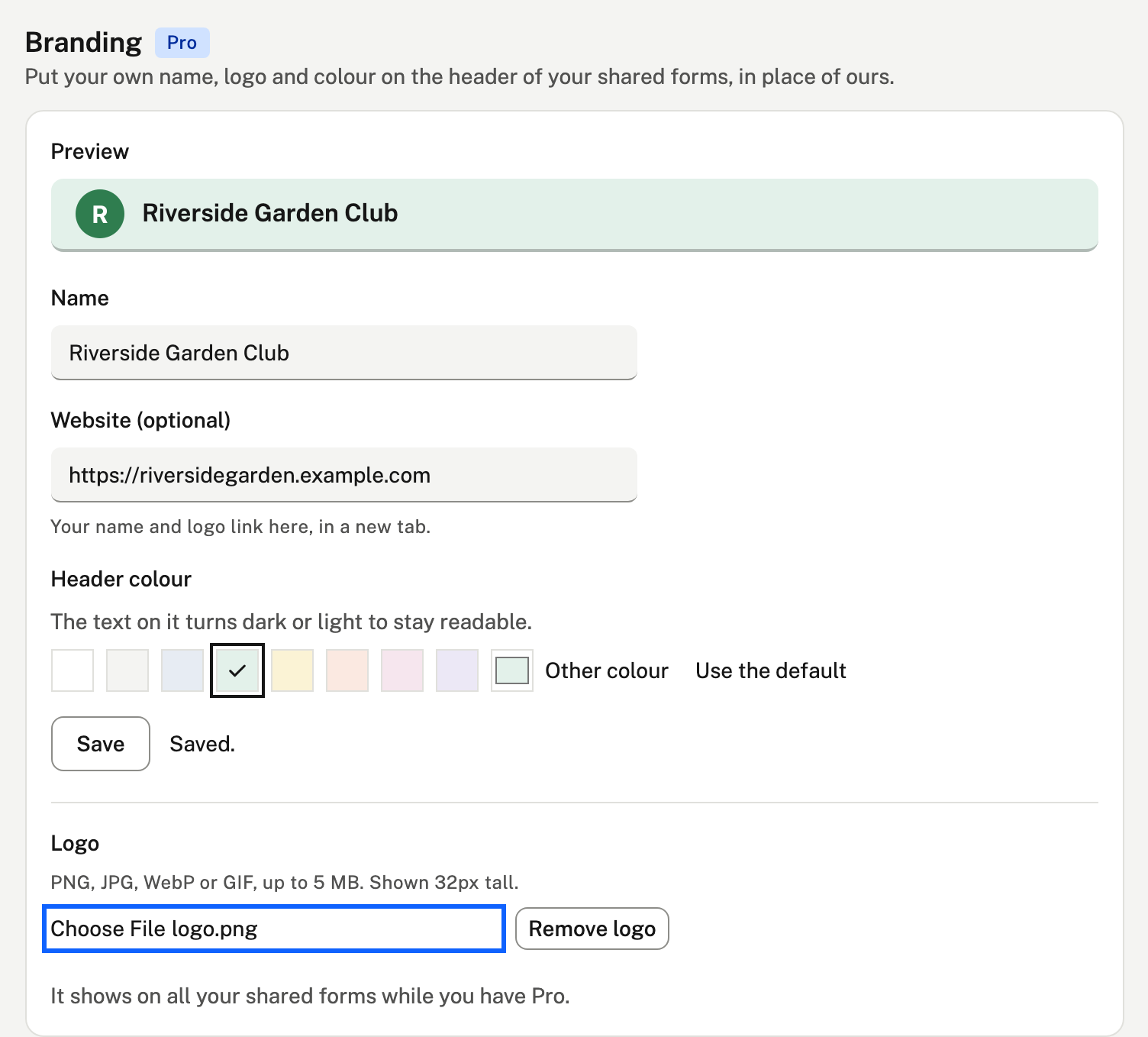
The preview shows what people will see at the top of your forms.
Where it shows
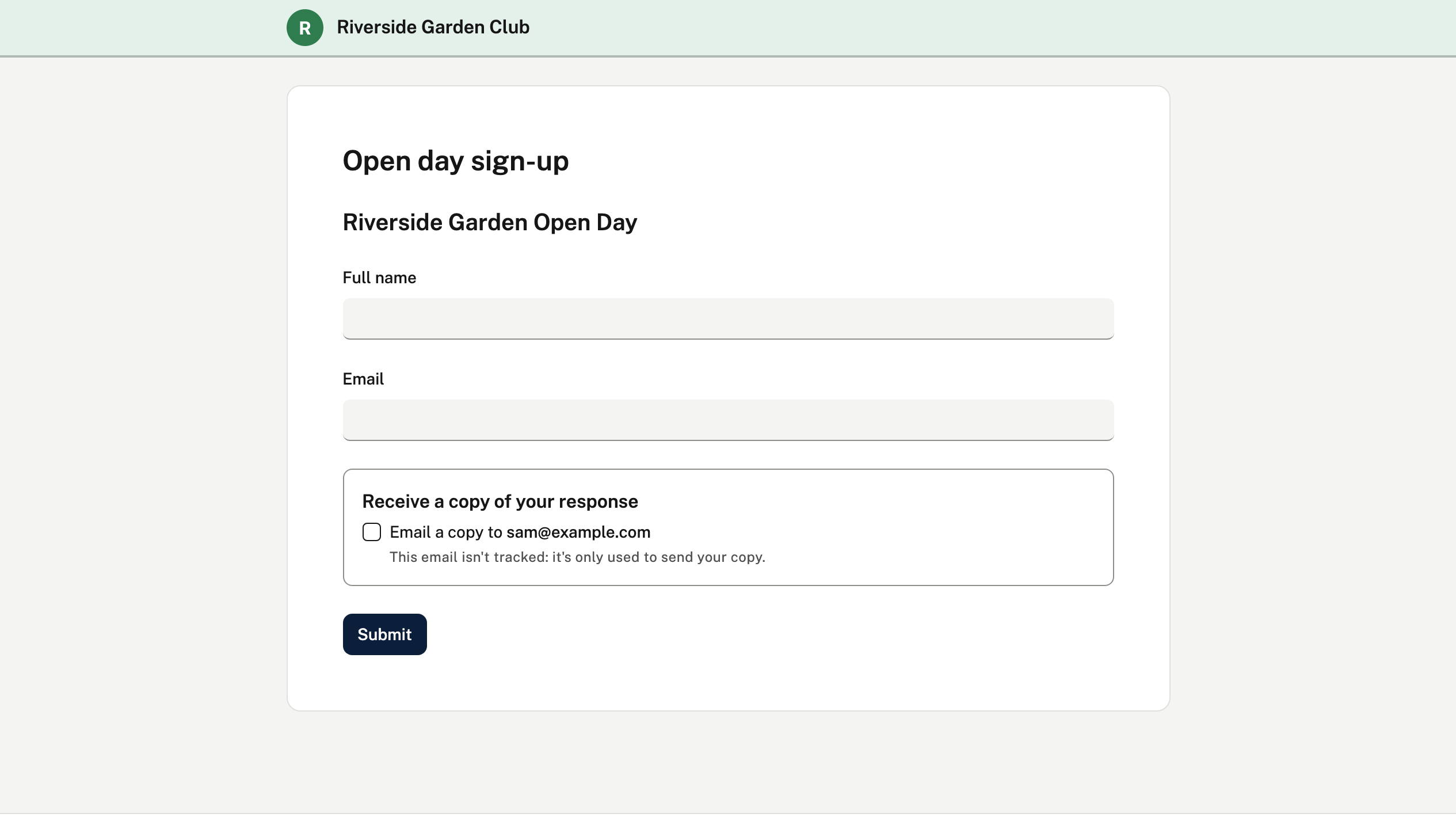
- On all your shared forms, while you have Pro.
- Before a password is entered too, and after a link closes.
- The links to our terms, privacy policy and help stay at the bottom of the page.
If your Pro ends, your forms go back to our header, and your branding is kept for when you're back.