Sharing & QR codes
Shared links
On a folder, choose New shared link and give it a name. Each link has its own address and its own data folder of responses, so using one link per place you share (a newsletter, a poster, a team) shows you where responses came from.

- All links show the same, latest version of the form.
- A link's page has four tabs: Share (the link, its QR code and the button for your site), Responses, Restrictions and Settings (turning it off, and deleting it).
- Link addresses are long and random, so they can't be guessed. But anyone you send one to can pass it on. If that matters, see "Controlling who responds" below.
- Shared forms are hidden from search engines.
- On a link's Share tab, the "Send it by" buttons open your email, text messages, WhatsApp, Facebook, X or LinkedIn with the link ready to send. On a phone, Share… opens the phone's own share sheet.
- People sign in with their email to respond. A quick check runs in their browser first, with nothing for them to do.
- People can leave a long form part-filled with Save and continue later. They get a link back to their answers (emailed to them if they like) that works on any device for 30 days, and is gone once they send their response. Anyone with the link can see those answers, so it's theirs to keep private. On a form with page breaks you can also turn on Save progress here for a break, which saves their answers as they move past it.
- With Pro, you can turn on See unfinished entries under the link's Settings. Saved and part-filled answers then show under Responses, with the address each person signed in with, and you can delete them. People filling in the form are told you can see them. The Responses dashboard shows how many each link has. It's off until you turn it on, and turning it off forgets the addresses.

QR codes
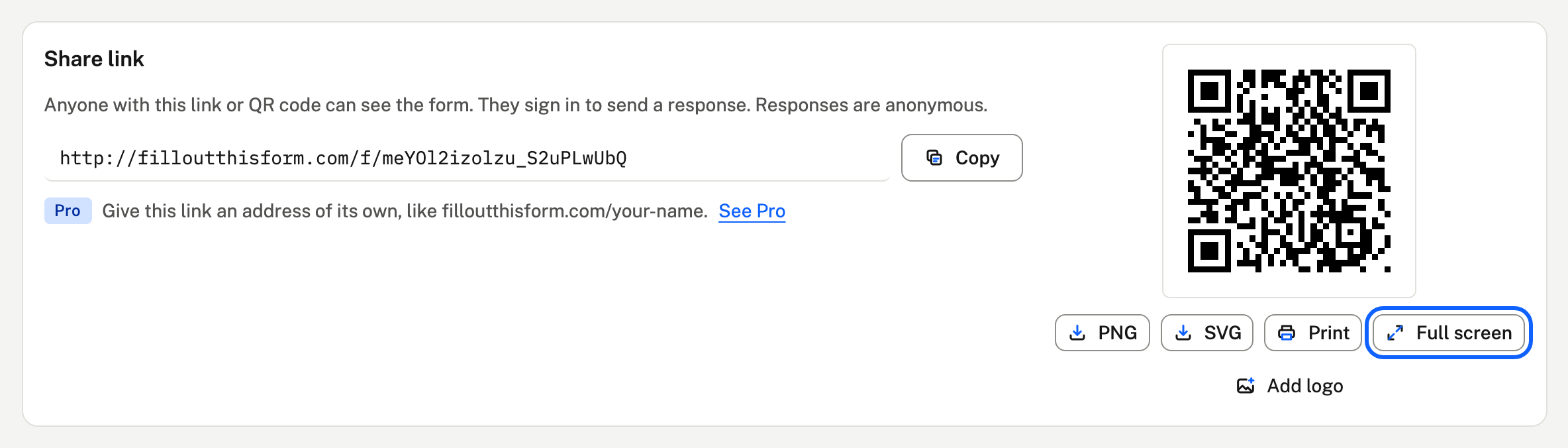
Every link has a QR code, for the places a link can't go. It's on the link's Share tab, next to the link.
- PNG or SVG downloads the code as a picture.
- Print opens a page with the code and the link, ready to print.
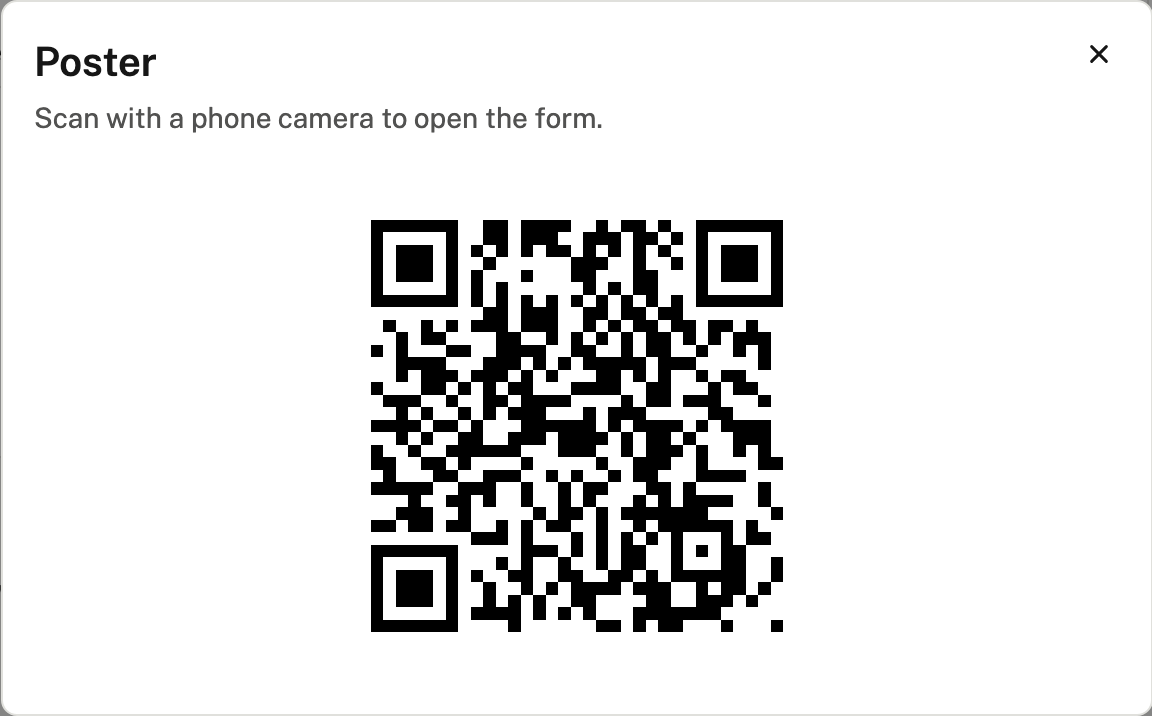
- Full screen shows it big, to scan from your phone.
Turning a link off
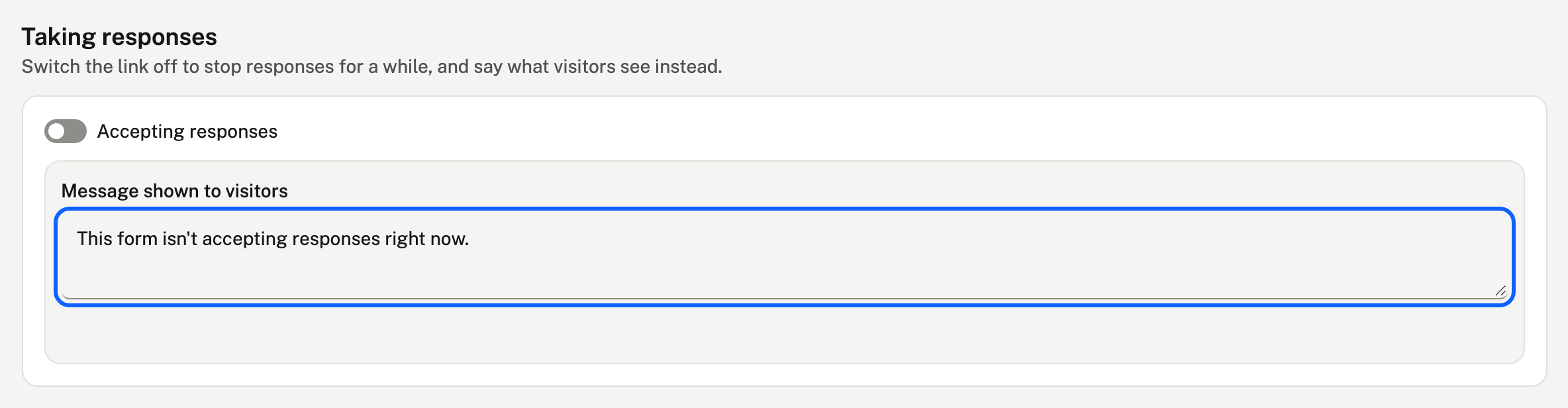
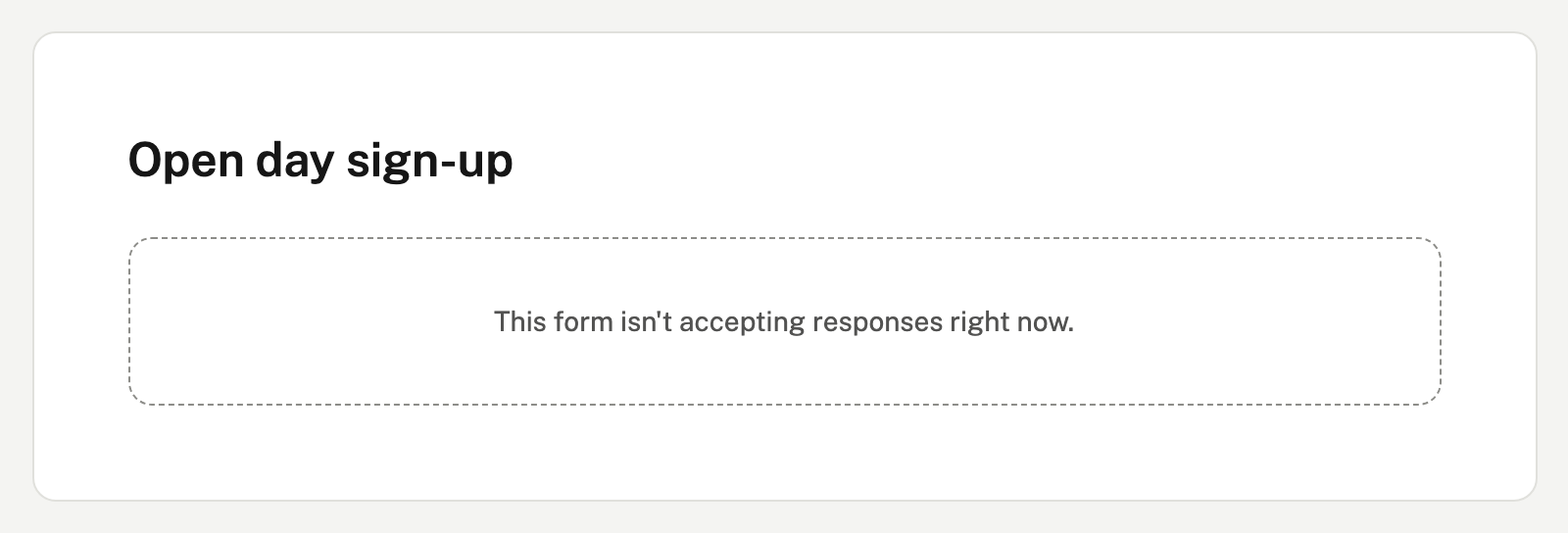
In the link's Settings tab, switch off Accepting responses to close it. Visitors then see a message instead of the form. The default message is "This form isn't accepting responses right now." Change this in the Message shown to visitors section.

This is what visitors see:
Filling in part of a form for someone
If you know some of the answers, such as from a phone call or at a counter, you can fill those in first and send the person a link to finish the rest.
- On the link's Share tab, choose Fill in and send.
- Answer the questions you know. Leave the others blank.
- Optionally, enter their email address and we'll send them the link. Or choose Create link and copy it to send yourself.
The link opens the form with your answers already in. They can check and change any of them, fill in the rest and send. Anyone with the link can see the answers, so send it only to the person. It works for 30 days, or until the response is sent. We email any one address at most once a day.
Copies for the people responding
Above Submit, people can tick a box to get a copy of their response by email, at the address they signed in with. It's on for every link. To turn it off, switch off Let people email themselves a copy of their response in the link's Settings tab.

Archiving links
While a form has shared links, changes that would affect their responses are locked (see Editing a shared form). Archive links archives all of the form's links at once. It asks you to confirm first:
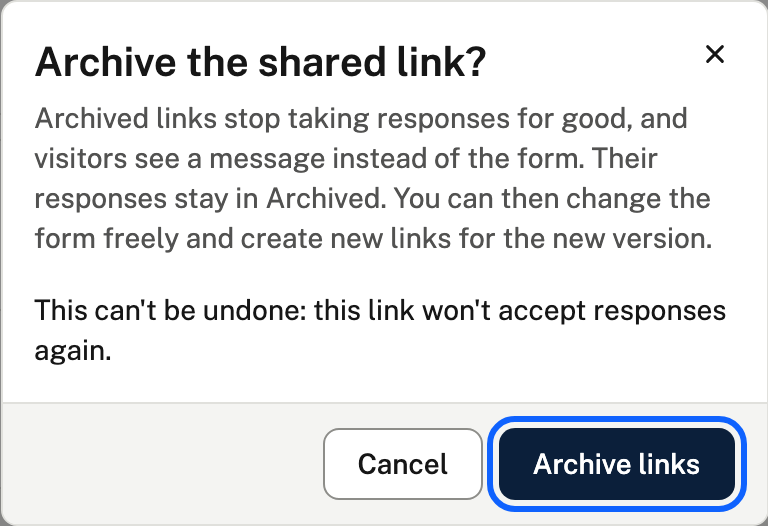
- They stop taking responses for good, and move to Archived.
- Their responses stay there, to read and download.
- Visitors see "This form isn't accepting responses anymore." or your own message, like a pointer to the new link.
- Archived links don't count towards how many links a form can have.
Controlling who responds
Anyone with a link can respond. To narrow that down, or to have more than 2 links for a form, see the paid features:
- Response limits: in total, or per person.
- Password protection.
- Allowed emails.
- Unlimited shared links.
Renaming and deleting
Rename a link with the pencil beside its name. Deleting a link, in its Settings tab, deletes its responses too, for good. You'll type its name to confirm, so download them first if you need them.