Response emails
A Pro feature. Upgrading a single form doesn't include it. See Plans & pricing.
Setting it up
- Open the shared link from its form, and its Settings tab.
- Under Email notifications, enter an address and choose Add. Your own is filled in to start with.
- Add up to 5 addresses per link.

A spreadsheet by email
Rather than an email for every response, you can get them together. On the same Settings tab, under Emailed spreadsheet, choose Every day, Every week, on Monday or Every month, on the 1st.
- It's sent to the address you sign in with, as a CSV file you can open in Excel or Google Sheets.
- Each one has only the responses since the last, and none is sent when there are none.
- It starts from the moment you turn it on. Responses already there aren't sent.
- It goes out at about 3am UTC. Choose Never to stop.
- To send it to other people too, turn on Also send it to the people who get this link's response emails. It goes to everyone who has confirmed above, who can stop it from any email. Anyone you set to get only some responses is left out, since the file would have more than they asked for.
Other people confirm first
- Your own account's address is on straight away.
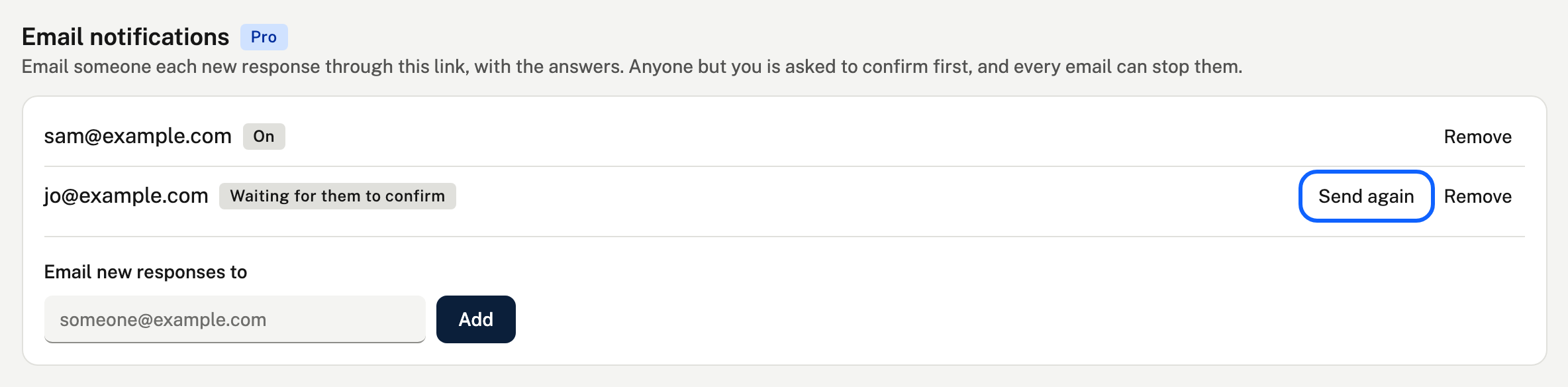
- Anyone else gets one email asking whether they want these, and is only sent responses after they choose Confirm. Until then they're listed as Waiting for them to confirm, with Send again.
- Every email has a link to stop them. You can remove an address at any time too.
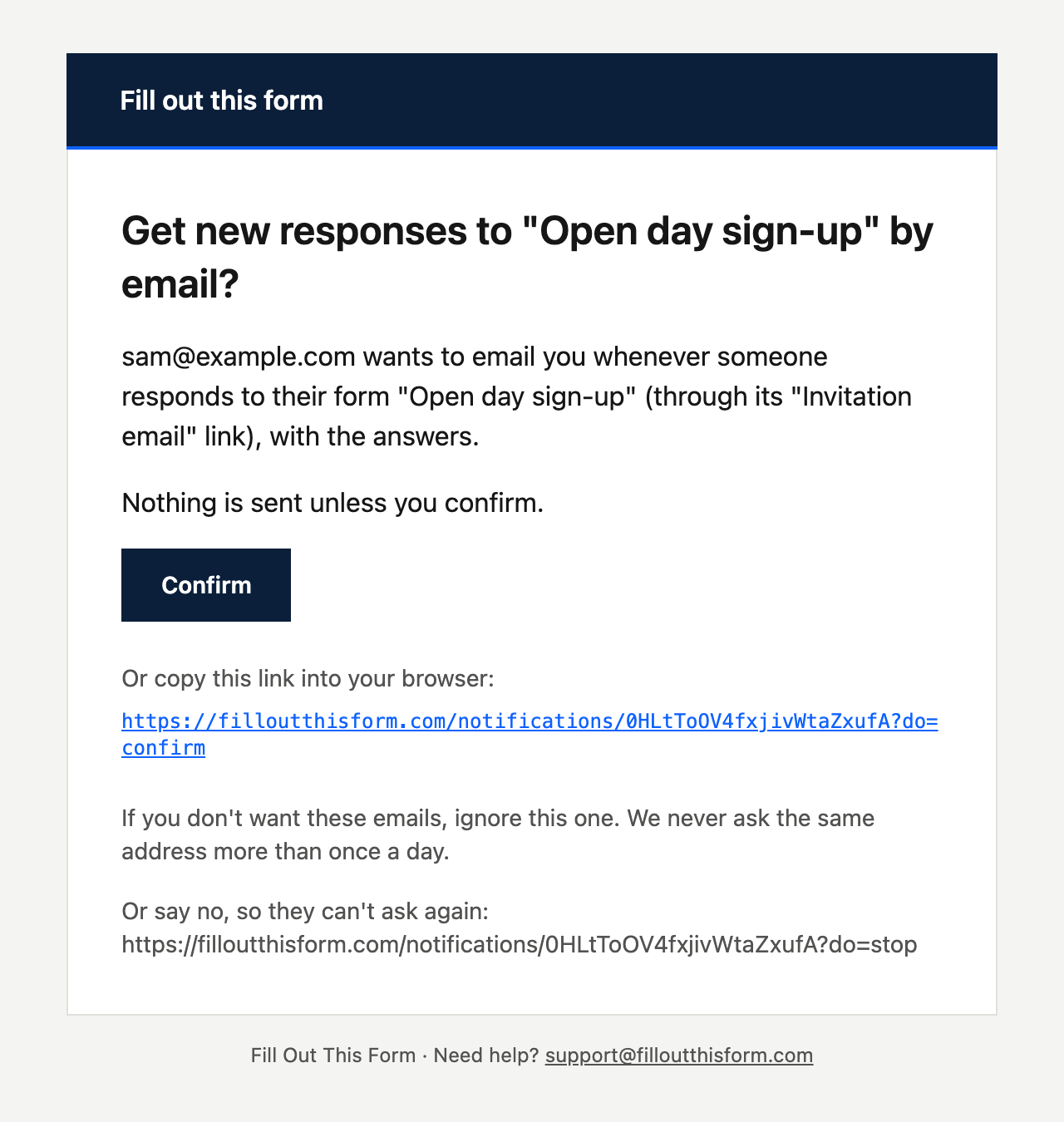
This is the email they get:
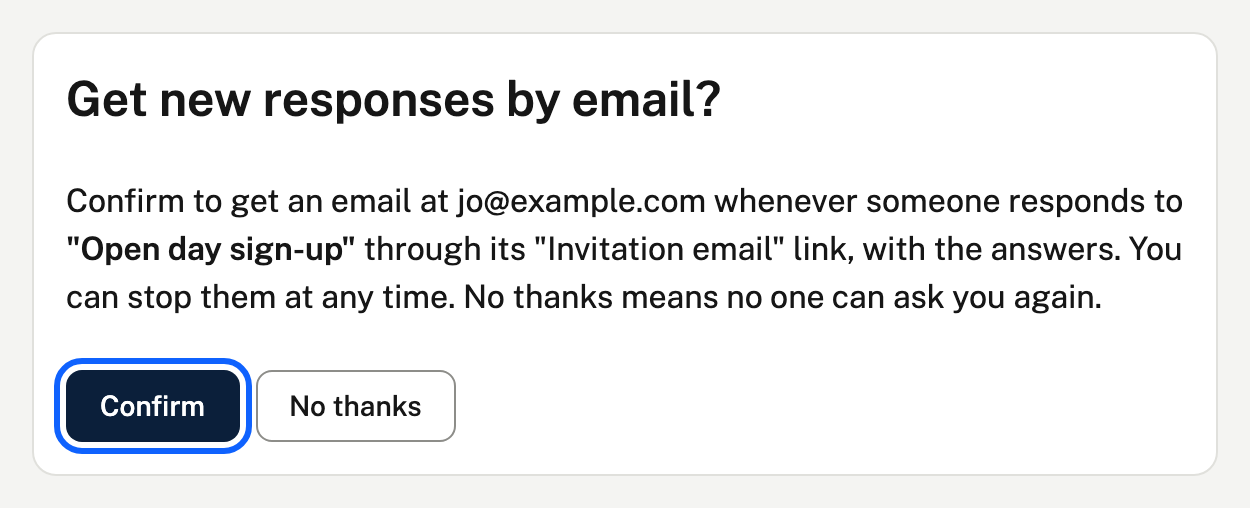
The Confirm button opens a page that asks once more. Nothing is sent until they choose Confirm there.
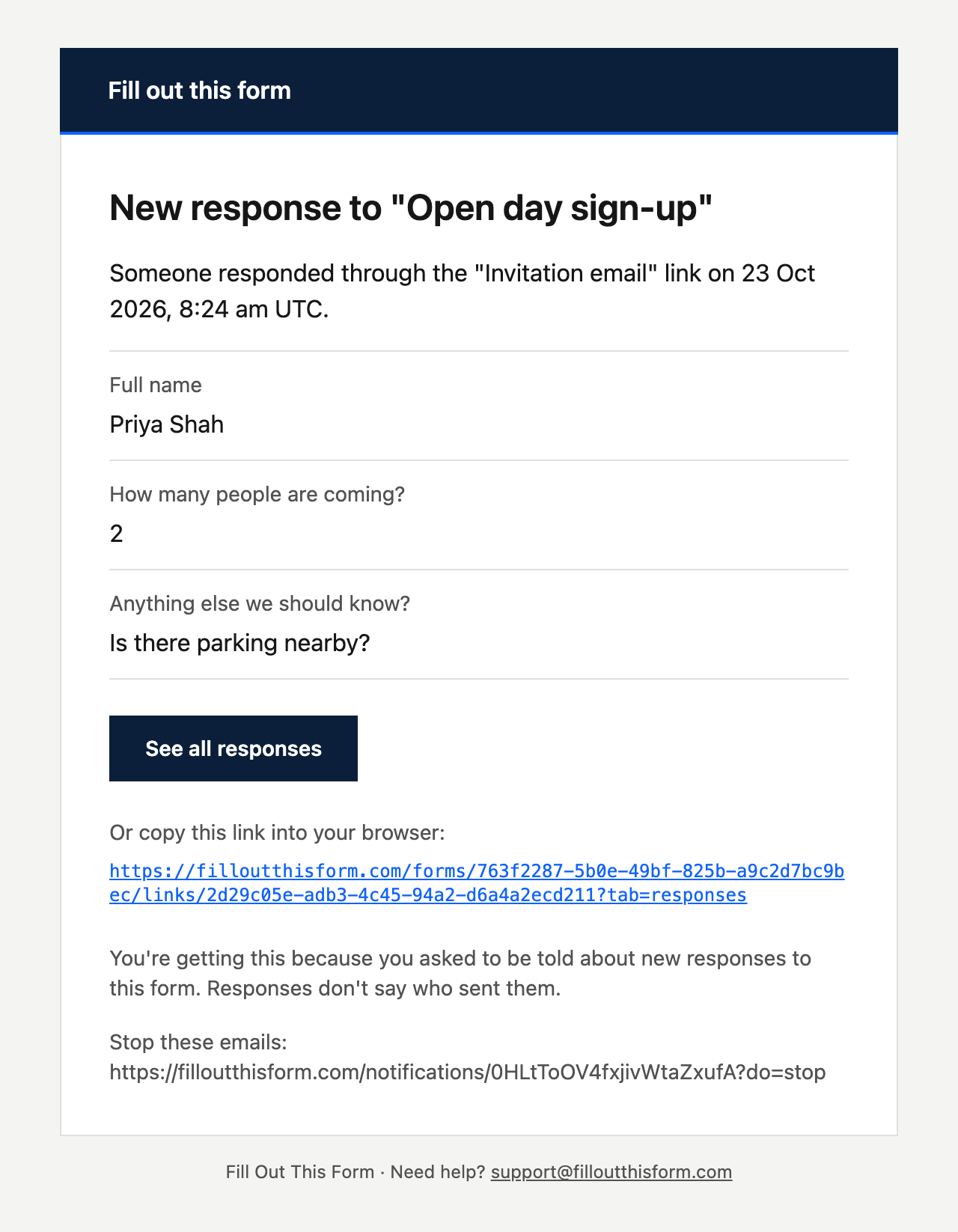
What each email has
The form and link it came through, when it arrived, each question with its answer, and a link to the responses (which only you can open). Responses never say who sent them.
Choose what's in the email
Above the list of addresses, Emails include sets whether each email has every answer, only the questions you tick, or a link only. That's handy when answers are private and the email only needs to say something arrived. A line at the top adds a sentence of your own before everything else. Attach the response as a PDF sends the same answers as a PDF file with each email, which is handy for filing or printing. It isn't offered when the emails carry no answers. Attach the files people upload sends the files from File upload questions with each email, for the questions the email carries. Together they can be up to 10 MB. A file that wouldn't fit is left off and the email says so, and you can always download it from the responses. Everything here applies to everyone on the list.
Different people for different answers
Under a person's address, choose Only when… to email them only for responses where an answer matches, for example "Department is Sales". Pick a question, how it should match, and the answer. Others on the list still get every response, and Every response takes the condition off again. If you later delete the question, the condition is ignored and they get every response, so nothing is missed.
If your Pro ends
The emails stop, and the addresses are kept: they start again when you have Pro.