Templates
Saving and using one
Say you've built the open day sign-up from Build a form. Next year's open day needs the same questions, so save it as a template.
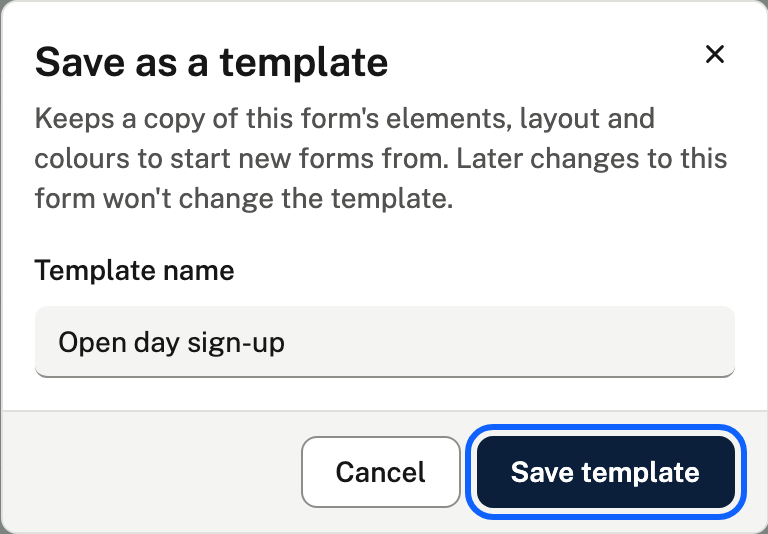
- On the form you like, choose Save template.
- Give it a name, or keep the form's own, and choose Save template again.

Next time, start a new form from it.
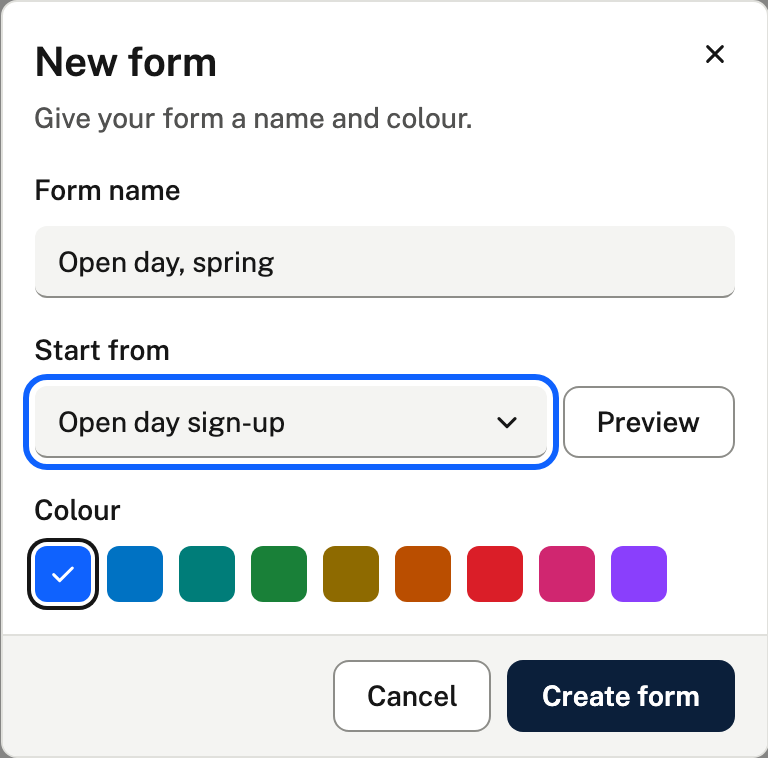
- Choose New form and give the form a name.
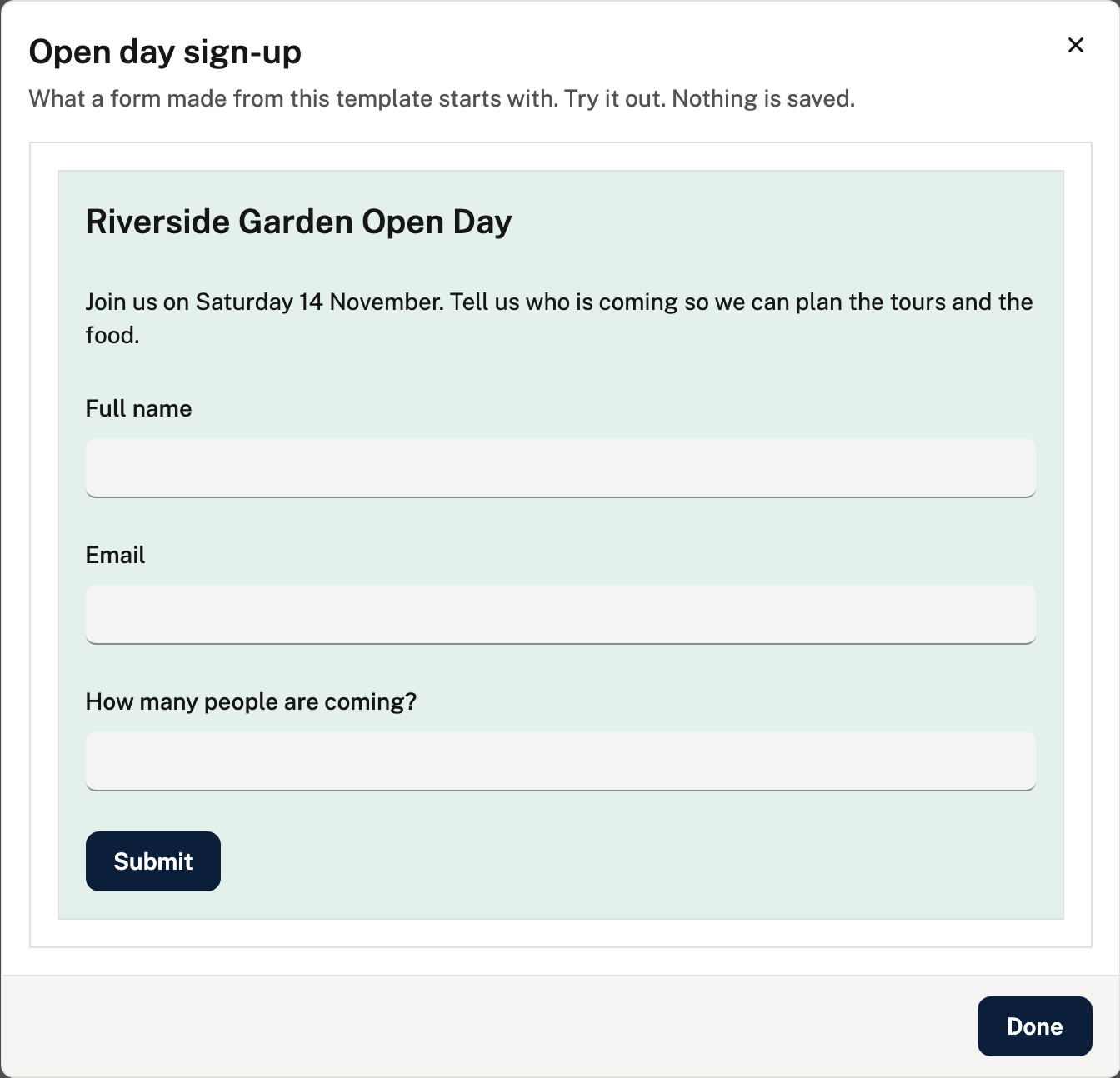
- Pick the template under Start from. Preview shows what you'll start with, and nothing you try there is sent.
- Choose Create form.
Not saved one yet? Under the Starter headings there are ready-made forms to begin from, grouped by what they're for: registration (event registration, RSVP, enrolment), feedback, requests (contact us, booking request), application, consent and agreement, patient intake, lead capture, quote, order, payment details and competition entry. Change them however you like.
The new form opens with everything in place, ready to change.
New to forms? Start with Build a form.
Looking after your templates
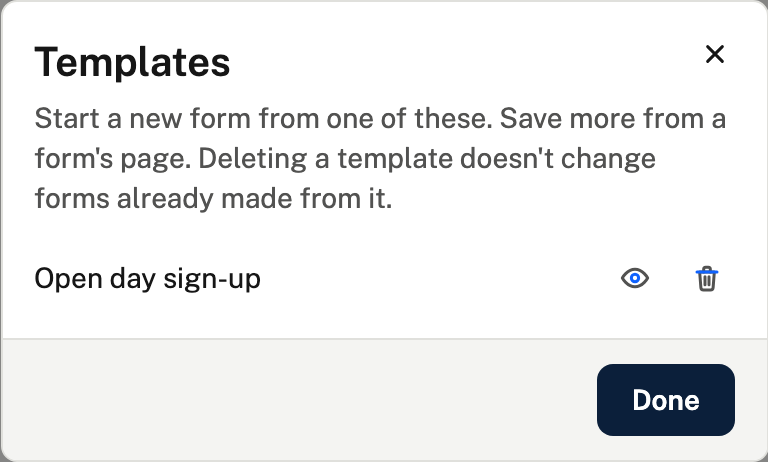
On the Forms page, choose Templates to see the ones you've saved. From there you can look at one or delete it. Deleting a template doesn't change the forms already made from it.
What it keeps
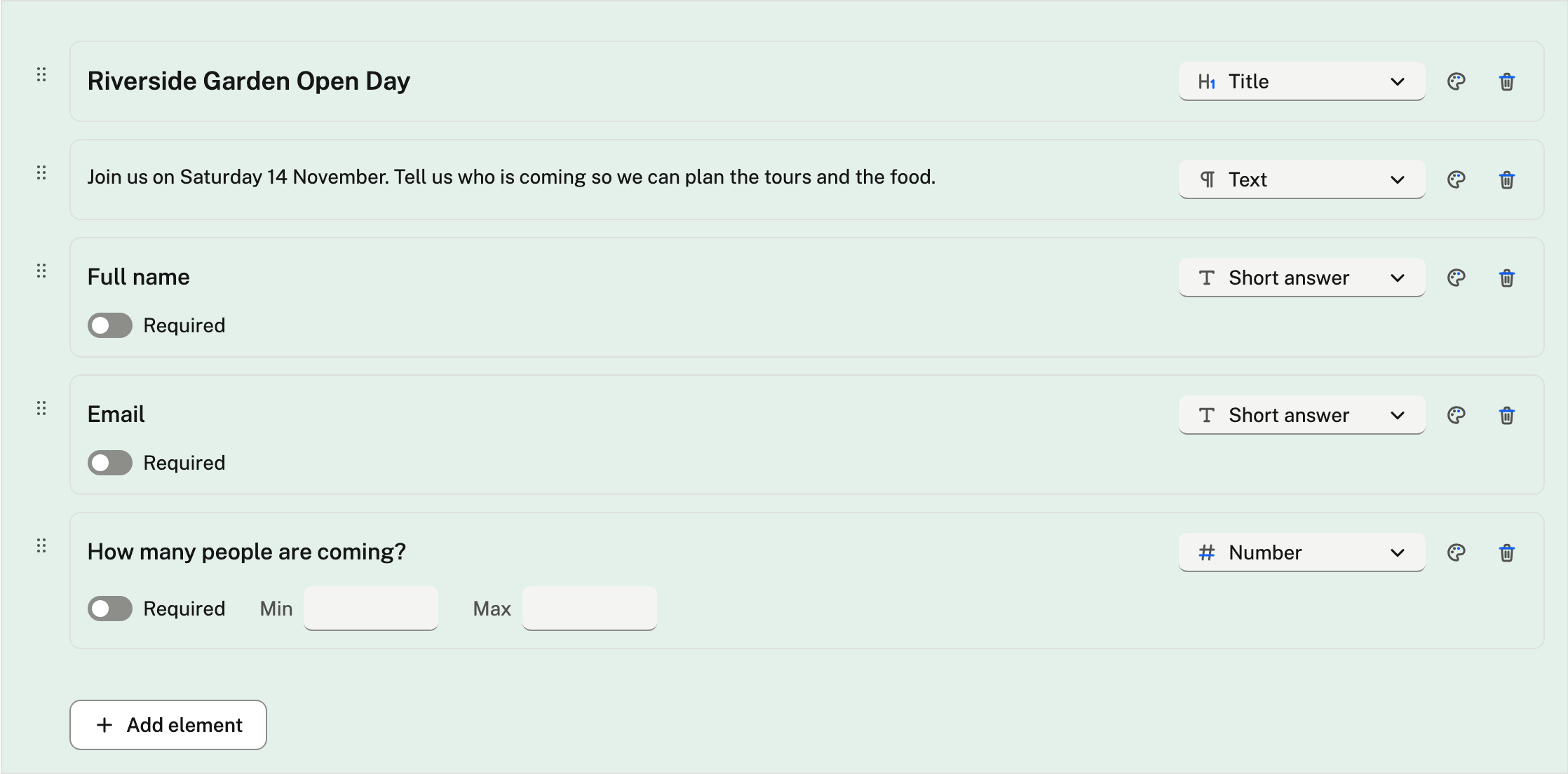
A template keeps a form's elements, their order and columns, its colours and its pictures. A new form made from it starts with all of that in place, and is then a form of its own: changing one never changes the other.
Templates are only the design. Shared links and responses stay with the form they belong to. You can keep up to 50.